Why Is My Laptop Overheating? Causes, Signs & Fixes
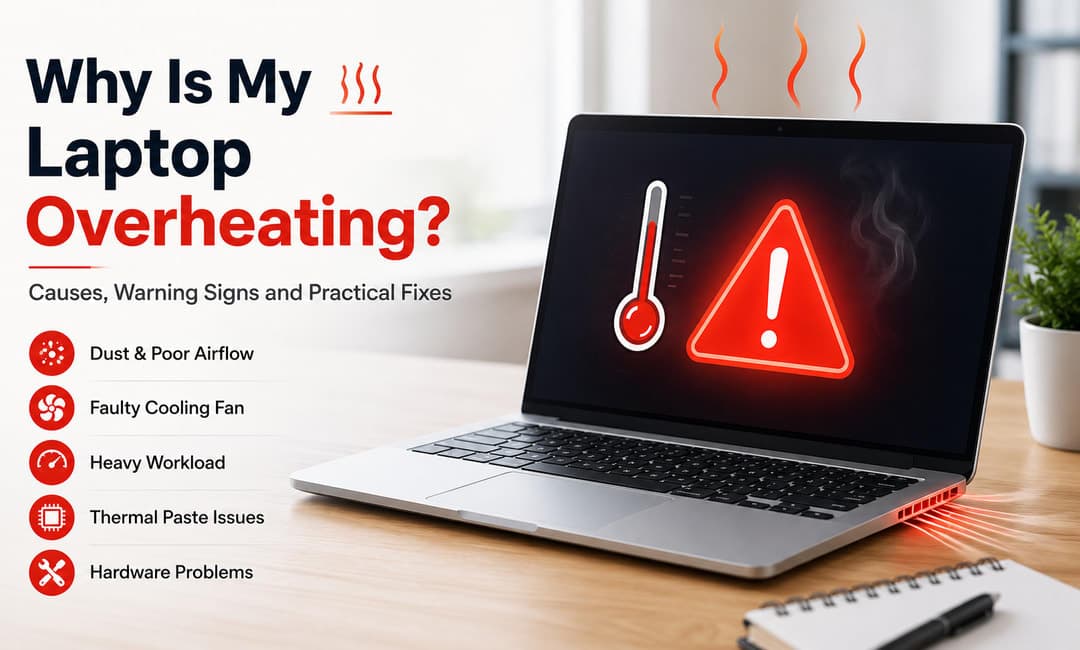
A laptop that becomes unusually hot during normal use may have an airflow problem, accumulated dust, a failing cooling fan, heavy background processes, dried thermal paste, or another hardware issue. A little warmth is normal, especially during demanding work, but excessive heat can cause slow performance, sudden shutdowns and long-term component damage. GoTechnicians currently lists laptop checkups, laptop and desktop repair, gaming laptop service, component installation and related support under its laptop repair services. Its service page also specifically identifies overheating and fan issues as problems technicians handle.
What temperature is too hot for a laptop?
There is no single temperature that applies to every laptop because processors and cooling systems differ. In general, a laptop that becomes too hot to comfortably touch, repeatedly shuts down, becomes extremely slow under ordinary workloads, or runs its cooling fan continuously deserves attention.
For a more useful diagnosis, look for a combination of symptoms rather than relying on temperature alone.
Common warning signs include:
The keyboard or palm rest becomes unusually hot.
The cooling fan runs loudly for long periods.
The laptop becomes slow after several minutes of use.
The system freezes during demanding tasks.
The laptop switches off without warning.
Games or applications begin stuttering.
The fan repeatedly speeds up and slows down.
Hot air is barely coming out of the ventilation openings.
The laptop feels noticeably hotter than it did previously.
If overheating is accompanied by a swollen battery, unusual smell or visible physical damage, stop using the device and arrange a professional inspection.
Why does a laptop overheat?
1. Dust is blocking the cooling system
Dust is one of the common reasons for laptop overheating. Over time, dust can collect around the fan, heat sink and ventilation openings.
When airflow is restricted, heat cannot leave the laptop efficiently. The processor then becomes hotter, and the fan has to work harder.
A laptop used in a dusty room or placed on fabric for long periods can accumulate debris more quickly.
2. The cooling fan is dirty or faulty
The fan moves warm air away from internal components. If the fan is clogged, noisy, slow or no longer working properly, internal temperatures can rise quickly.
A grinding or rattling fan should not be ignored. It may indicate mechanical wear or damage.
3. The laptop is being used on a soft surface
Beds, sofas and cushions can cover ventilation openings underneath a laptop.
This restricts airflow and traps warm air around the machine.
For regular use, place the laptop on a firm, flat surface that leaves its ventilation openings unobstructed.
4. Too many applications are running
A laptop can become hot when the processor is constantly under heavy load.
Web browsers with many tabs, video editing software, games, large file transfers, virtual machines and other demanding applications can increase processor and graphics activity.
Open the system's task manager or activity monitor and check which applications are using the most CPU or GPU resources.
5. Malware or unwanted background processes
Some unwanted software can consume processor resources continuously.
If the laptop has suddenly become slow, hot and unusually noisy even when you are doing very little, check for unfamiliar processes and run a reputable security scan.
6. The thermal paste has degraded
Processors transfer heat to a heat sink through a thermal interface material, commonly called thermal paste.
With age and repeated heating and cooling, this material can lose effectiveness. When that happens, heat transfer between the processor and cooling system may become less efficient.
Replacing thermal paste requires opening the laptop and should generally be handled by someone familiar with the particular model.
7. The cooling system needs professional cleaning
Sometimes the visible ventilation openings look clean while dust has accumulated deeper inside the laptop.
A proper internal inspection can identify dust around the fan, heat sink and other cooling components.
GoTechnicians offers a Laptop Checkup and Gaming Laptop Service, with the latter specifically covering cooling, performance and overheating-related concerns.
Why does an overheating laptop become slow?
Many modern processors reduce their operating speed when temperatures become too high. This is commonly referred to as thermal throttling.
The purpose is to protect the hardware.
That means an overheating laptop may initially appear to work normally. After several minutes of demanding use, however, performance can drop.
You may notice:
Applications taking longer to respond
Games losing performance
Video editing becoming slower
Browser tabs becoming sluggish
The fan running continuously
Sudden freezes or shutdowns
If cleaning the ventilation area and reducing workload do not solve the problem, the cooling system should be inspected.
How to reduce laptop overheating at home
There are several safe steps you can take before booking a repair.
Keep ventilation openings clear
Use the laptop on a hard, level surface. Avoid placing it directly on blankets, pillows or thick fabric.
Reduce unnecessary background applications
Close programs you are not using and review applications that start automatically with the operating system.
Keep the room reasonably ventilated
A very warm room makes it harder for the laptop's cooling system to release heat.
Keep the exterior clean
Dust around ventilation openings can be removed carefully from the outside. Avoid forcing objects into the vents.
Update your operating system and drivers
Updates can sometimes resolve software problems that cause excessive processor or graphics activity.
Avoid ignoring repeated shutdowns
A laptop that repeatedly switches off because of heat should be inspected rather than repeatedly restarted and used in the same condition.
When should you book laptop repair?
Professional laptop service is advisable when overheating continues after basic maintenance or when you notice physical or performance-related warning signs.
Consider a technician inspection if:
The fan has become unusually loud.
The fan does not appear to work.
The laptop shuts down during normal use.
Performance drops after the laptop heats up.
The device becomes hot even when idle.
The laptop has never received internal cleaning.
The cooling system appears damaged.
You suspect a battery or motherboard problem.
The laptop is several years old and has developed new thermal problems.
GoTechnicians provides laptop repair and checkup services and covers hardware and software issues across its service areas in Mumbai, Thane and Navi Mumbai.
Laptop overheating while gaming
Gaming laptops naturally generate more heat because their processors and graphics hardware work harder.
However, excessive temperatures, severe performance drops and repeated shutdowns are signs that the cooling system needs attention.
GoTechnicians has a dedicated Gaming Laptop Service listed on its service page. The service is intended to address performance, cooling and stability concerns in gaming laptops.
Related internal link: Gaming Laptop Service
Can a laptop cooling pad solve overheating?
A cooling pad can improve airflow underneath some laptops, but it does not repair an internal cooling fault.
If the fan is clogged, damaged, or the internal heat transfer system is no longer working properly, adding an external cooling pad may only mask the underlying problem.
Use one as an additional cooling aid rather than as a replacement for proper diagnosis.
Does laptop overheating damage the battery?
High temperatures can affect battery health over time. Battery problems can also create their own heat-related risks.
If the laptop body is swelling, the trackpad is lifting, the casing is separating or you notice an unusual smell, stop using the laptop and seek professional assistance rather than continuing to charge it.
How often should a laptop be serviced?
There is no universal service interval for every laptop.
A laptop used in a clean office may need less frequent internal cleaning than one used in a dusty environment, workshop or home. Gaming laptops and machines used for demanding workloads may also require closer attention to cooling. A practical approach is to arrange a checkup when you notice persistent overheating, fan noise, performance degradation or other changes in normal operation. GoTechnicians offers a Laptop Checkup specifically for identifying potential problems before they develop into unexpected breakdowns.
Book a Laptop Checkup Before a Small Cooling Problem Becomes a Larger Repair
Persistent overheating is worth investigating early. A technician can inspect the cooling system, identify the source of excessive heat and determine whether the laptop needs cleaning, component repair, replacement or a more detailed diagnosis.
Book Laptop Repair & Checkup with GoTechnicians
GoTechnicians currently provides laptop repair services covering Mumbai, Thane and Navi Mumbai, with options including laptop checkups, laptop and desktop repair, component installation, MacBook service, gaming laptop service and data recovery or backup.